Tampilkan postingan dengan label Google Map. Tampilkan semua postingan

How to Locate a Cell Phone with Google Maps

Posted by Unknown Rabu, 13 Maret 2013 0 komentar
how to locate a cell phone with Google maps

As the mobile technology develops rapidly recent years, our cell phones are not just communication tools and are more and more important for our working and daily life! We usually save contacts, E-mail, messages, photos, personal notes and even business files into cell phones. If our phones were lost or stolen, that would be a disaster. As a result, it is necessary to know how to locate a cell phone. In addition, if we can track the location of cell phones, it would be easier and more convenient to know where our family and friends are. Now let's learn how to locate a cell phone with Google Maps in detailed steps!

What we should know:

1. Except Google service, we still can locate our cell phone with other free apps, such as Foursquare, Facebook's "Check In" feature; Find My iPhone app, or some Anti-virus apps. For Windows Phone, we can visit the official Windows Phone website to track our stolen Windows Phone device with "Find My Phone" feature. 

2. Concerning about safety issue about other data in cell phone, it is better not to install free unknown apps for locating a cell phone. Google Maps offers two main ways to trace our cell phones with GPS, and all the services are free and safe!

3. In case of unnecessary troubles, please back up your phone often. By the way, after missing for a period, your phone may lose some data, and you can use a third party tool to recover your data.

Locate a Cell Phone with Google Latitude

Google Latitude

The Google Latitude is a new feature of Google Maps to offer location-aware service. With Google Latitude, you can see the exact location of your family and loved ones. For privacy, you can decide which friend can see your location and turn off the location. Of course, it is easy to help you find out the location where your lost cell phone is.

Step One: Download and install the free Google Latitude app in Google Play, or go to the Google Latitude website on the computer.

Step Two: Sign up, log in with a Google account, invite your friends to join the Latitude. If they sign up, you can trace their location in real time. You can go to Privacy Settings and decide the friends that you want to share your locations with.

Step Three: If you lost your cell phone, you can go to the Latitude website and find the location of cell phone in Google Maps. By the way, you can tell your friends who use Latitude to help you trace your cell phone in Google Maps.
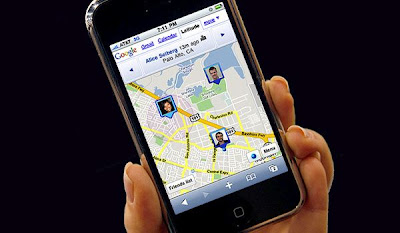
locate cell phone on Google Latitude


Locate a Cell Phone with the "Click-to-call" Feature of Google Maps

Step One: Go to Google Maps and search for any business such as a Chinese restaurant.

Step Two: Click the "Call" link next to the Google maps search results for the Chinese restaurant. Enter your cell phone number and Google will call the number. Then the location of cell phone will show up on Google Maps.


More Tips to Locate a Cell Phone:

1.    wheresmycellphone.com
Go to this website, enter your cell phone number, and then the website will call your cell phone.

2.   IMEI
IMEI number is a unique finger print of a cell phone and can be found underneath the battery. If your cell phone was lost, just tell your cell phone company to help track your phone by the IMEI number.


Baca Selengkapnya ....

How to Install Google Play Store on Amazon Kindle Fire HD 7''

Posted by Unknown Kamis, 18 Oktober 2012 0 komentar

Amazon Kindle Fire HD

If you are user of the Kindle Fire HD 7'', you must note that You can install only the apps from Amazon App Store and Amazon doesn't allow you to get any app from the Google Play Store. But the Internet is a world of wonder and you can find almost anything you want. Now there is great guide from a hack of XDA Forum that will tell you in details how to install the Google Play Store on your Kindle Fire HD 7''. In other words , you still can install some Google apps like Gmail, Maps, Google+ and enjoy millions of Android apps. Here we will share the following guide with you!

How to install Google Play Store on Amazon Kindle Fire HD 7''

Warning:

  • This is a guide for advanced users and you shouldn't attempt to install these files if you don't want to risk your device's OS. We shall not hold any responsibility or liability for whatever happens to you or your device arising from your use of the info in this guide.
  • The instructions in this guide are intended for use with the 7-inch Amazon Kindle Fire HD. Applying these instructions on another device or model may produce undesired outcomes.
  • Remember that you cannot restore your system folder after applying all these hacks.
Preparation:

  • Root your tablet (Click the link).
  • Download ES File Explorer from Amazon's App Store and install it on your tablet.
  • Charge the tablet's battery in case that it won't power during the installation of Google Play Store and Google Apps.
  • Download the following .apk files to your computer: Google Services Framework, Vending, Google Play Store
  • Backup all personal data on your tablet to make sure you have a copy of your personal data (e.g., contacts, SMS, Internet settings, Wi-Fi passwords, and the like) in case the procedure in this guide erases such data.

Steps:

  1. Connect your Kindle Fire HD tablet to your PC. Then move the Google Services Framework, Vending, and the Google Play Store APK files to your tablet's internal SD card.
  2. Disconnect the tablet from PC and launch ES File Explorer on your tablet
  3. Open the Settings menu in ES File Explorer and go head on to Settings > Root settings > Root explorer. Then enable 'Root Explorer' option and then confirm this action. Now click 'Allow' on the pop-up screen to grant root access for ES File Explorer.
  4. Enable “Up to Root” and “Mount File System”. After enabling both, close the Settings option and return to the main screen of ES File Explorer.
  5. Browse the folders and find the location where you've placed the files at step 1.
  6. Tap on the GoogleServicesFramework.apk file to install it on your tablet.
  7. Once installation is complete, long press on the Vending.apk file and select “Copy”.
  8. Press the Up button located on the top of the screen until you see folders named acct and cache.
  9. Look for the /settings/app folder. Open the folder and paste the Vending.apk file in it.
  10. After copying, long press on the Vending.apk file. Click on Properties then click Change. Now you should see a screen that says 'USER', 'GROUP', 'OTHER'. For USER line select only 'read' and 'write' options, while for GROUP and OTHER select only the 'read' option. Do not enable any other checkboxes. After you're done, tap the 'Close' button on Properties.
  11. Tap on the Vending.apk file file once again to start installing it. You will have the Android Market app after the installation.
  12. Exit the ES File Explorer and launch the Android Market found on the apps menu.
  13. Set up Android Market by providing your Google account details.
  14. Once set up is complete, close the application and go back to ES File Explorer.
  15. Navigate to where you copied the Gplay3.8.17.apk file. Tap on the file to start installing it to your tablet. This will upgrade your Android Market to Google Play Store.

You can now download lots of apps to your 7-inch Amazon Kindle Fire HD from the Google Play Store. By the way, Note that this guide won't change your device's Android OS version and it isn't a Firmware upgrade. It is simply a guide for installing the Google Play Store on a device that has the Amazon App Store set as default.

More Tips you should know:

Top Five Android Office Apps You Shouldn’t Miss! 
Top Browsers Supporting Flash for iOS 6 Devices 
How to Copy Music from iPod to PC for Free 
The Full Guide to Transfer eBooks to iPad for Reading on iBook 
How to Transfer Videos and Music from iPhone 5 to Computer


Baca Selengkapnya ....

Top Tips for iPhone 5 and iOS 6: Google Map and Battery Life

Posted by Unknown Minggu, 23 September 2012 0 komentar
Apple Map

The iPhone 5 is on your hand and iOS 6 has been updated for iPhone and iPad. Even though you love them, you have to admit that they also make some troubles to you, such as Apple Map, battery life. Thereby, we pick up some top tips to help you solve these problems.

Replacing Apple Map by Google Map on iOS 6

You may have complained the new Apple Map app so much, which has less, wrong information, and some terrible satellite photos. As we all know, the key point of map software is its richness and accuracy of data. To save your trouble, why not replacing the Apple Map by Google Map? Here is a useful video we pick from YouTube to tell you how to get Google Map back on iOS 6.


App: Tips & Tricks for iOS 6 and iPhone 5 - Video Walkthrough Secrets

This app, Tips & Tricks for iOS 6 and iPhone 5, is designed for both iPhone and iPad. You will get over 1000 unique iOS 6 tips and easy ways to master your iOS and iPhone 5. Most of the tips are step-to-step videos. We think it is worthy to own. Download it on iTunes.

App:tips for iPhone 5 and iOS 6


Extending the battery life of the iPhone 5

As Apple claims, iPhone 5 offers talk time of up to 8 hours on 3G and video playback of Up to 10 hours. But are you satisfied with it? No! So here we pick up some top tips to tell you how to extend battery life of iPhone 5.

1. Reduce screen brightness (browse to Settings > Brightness and adjust). There is also the option to set this on an automatic setting (browse to Settings > Brightness > Auto-Brightness On).

2. Turn off the functions and apps you don't use often.

Services like Wi-Fi and Bluetooth when not in use, turn off them and ensure Vibration Mode is turned off (browse to Settings > Sounds and set it to off).

Location Services (like Maps), when it is not in use, turn off (browse to Settings > Privacy > Location Services).

Turn Push Email function off, if not in use (browse to Settings > Mail, Contacts, Calendar > Fetch New Data and set Push Email to off).

3. Disable some default settings. Some apps use Push Notifications by default and this drains the battery. To disable, browse to Settings > Notifications and disable notifications for chosen apps.

4. Switch to Airplane Mode when low on battery or in an area with no network coverage (browse to Settings > Airplane Mode).

5. Keep iPhone away from direct sunlight and other heat sources.

 More tips for iPhone 5:

3 Ways to Play Flash SWF as HD Video on iPhone 5
iPhone 5 Tips - How to Transfer Videos and Music from iPhone 5 to Computer
Data Recovery Tips: How to Recover Deleted Files for iPhone 5

Baca Selengkapnya ....
Trik SEO Terbaru support Online Shop Baju Wanita - Original design by Bamz | Copyright of android backup apps.